Rani Sharma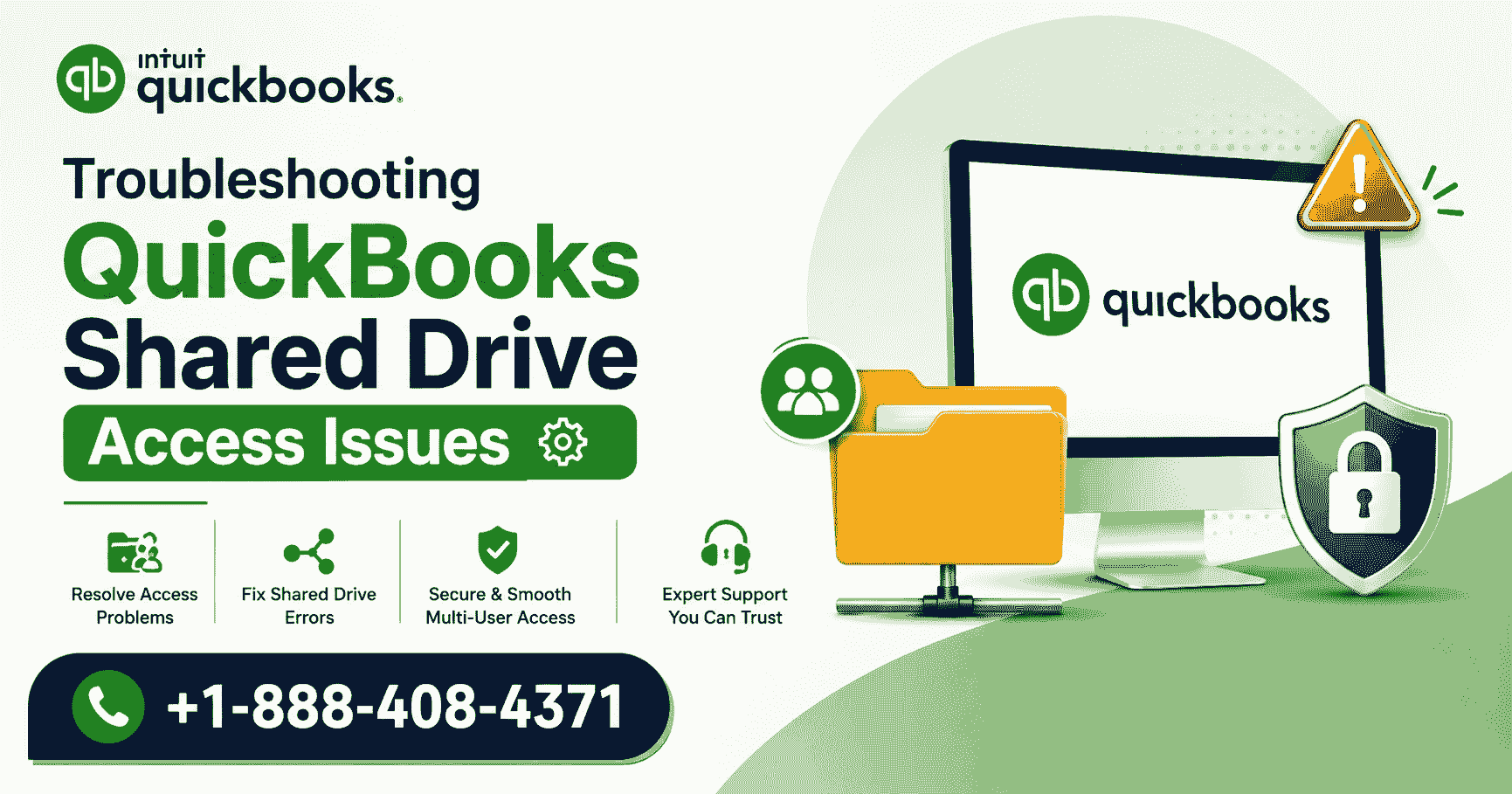
When running QuickBooks Desktop in a multi-user environment, network stability is everything. One of the most common pain points for accountants, bookkeepers, and business owners is the inability to access company files stored on a shared drive. Whether you use a mapped network drive, a NAS (Network Attached Storage), or a dedicated server, QuickBooks shared drive access issues can bring your financial operations to a halt. This comprehensive guide walks you through the causes, step-by-step troubleshooting methods, and permanent fixes to restore seamless access.
Understanding QuickBooks Shared Drive Access Issues
QuickBooks is designed to work over Local Area Networks (LAN) but has specific requirements for shared drives. Unlike standard file sharing, QuickBooks relies on a background service called the QuickBooks Database Server Manager. When this service cannot communicate with the shared drive—or when network permissions are misconfigured—users encounter errors ranging from slow performance to complete denial of access.
Common Symptoms of Shared Drive Access Problems
-
The company file opens extremely slowly over the network.
-
Users receive “File in use” messages when no one else is active.
-
QuickBooks freezes or crashes when saving transactions.
-
The shared drive appears visible in Windows Explorer but QuickBooks cannot see the .QBW file.
-
Error codes like H202, H303, H505, or “Cannot communicate with the server.”
Why Shared Drives Cause QuickBooks Issues
QuickBooks uses a proprietary locking mechanism to prevent data corruption. When multiple users access the same company file, the Database Server Manager creates .ND and .TLG files alongside the .QBW file. These helper files require read/write permissions at a granular level. Standard shared drives—especially network-attached storage (NAS) devices that do not fully support SMB (Server Message Block) protocols—often strip away necessary permissions.
The Role of Network Mapping
Mapping a drive (assigning a letter like “Q:” to a network path such as \ServerQuickBooksData) simplifies access for users. However, QuickBooks is sensitive to how the mapping is established. If the mapping is temporary (session-based rather than persistent), or if it uses hostnames instead of IP addresses, access failures become frequent. This is where QuickBooks network mapping issue support becomes critical. Professional support tools and techniques can diagnose whether the problem lies in the drive mapping itself or in deeper network layers.
Pre-Troubleshooting Checklist
Before diving into advanced fixes, perform these basic checks:
-
Verify physical connections – Ensure all computers and the shared drive/server are on the same network segment.
-
Disable VPNs temporarily – VPNs often disrupt SMB broadcasts. Test without VPN active.
-
Check file permissions – Right-click the shared folder → Properties → Sharing → Advanced Sharing → Permissions. Every QuickBooks user needs “Change” and “Read” permissions.
-
Review Windows Firewall – QuickBooks uses ports 8019, 56728, 55378-55382. Create inbound/outbound rules if needed.
-
Run QuickBooks File Doctor – This built-in tool automatically diagnoses shared drive issues.
Step-by-Step Solutions for Shared Drive Access Failures
Solution 1: Reconfigure Database Server Manager
The QuickBooks Database Server Manager must be installed on the computer that physically hosts the shared drive (or the server). It scans folders and configures network ports.
Steps:
-
On the host computer, open Start Menu and type “QuickBooks Database Server Manager.”
-
Click “Scan Folders” and add the folder containing your .QBW file on the shared drive.
-
Click “Start Scan.” Wait for all files to show “Ready.”
-
Restart the QuickBooksDBXX service (XX = version year) from Services.msc.
If the scan fails to see the shared drive, the underlying issue may be a permission or visibility problem. In such cases, advanced technicians often rely on QuickBooks H202 and H505 Errors: Network Mapping resolution guides, as those specific error codes directly point to the server not being able to communicate with the hosted company file.
Solution 2: Remap the Network Drive Using IP Address Instead of Hostname
Hostname resolution over older networks can fail. Mapping via IP is more reliable.
Steps:
-
Open Command Prompt as Administrator.
-
Type
net use Q: \192.168.x.xShareName /persistent:yes(replace with your server’s actual IP and share name). -
Press Enter. Then open QuickBooks and browse to Q:YourCompanyFile.qbw.
If you are still migrating to a newer version or setting up a fresh environment, it is also the right time to ensure you are using the most stable release. You can Download QuickBooks Desktop Enterprise 2024 with License Key from the official Intuit portal to get enhanced network performance and better shared drive handling, including native support for mapped drives on Windows Server 2022.
Solution 3: Disable Folder Redirection for QuickBooks Folders
Some organizations redirect Desktop or Documents folders to a network drive. QuickBooks does not support running a company file from a redirected folder. Move the .QBW file to a dedicated shared folder outside of user-profile paths.
Solution 4: Adjust SMB Protocol Settings
QuickBooks requires SMB 2.0 or higher. If your shared drive is an older NAS, force SMB 2.0.
On Windows:
-
Open Control Panel → Programs and Features → Turn Windows features on or off.
-
Enable SMB 1.0/CIFS File Sharing Support (only if legacy devices are present) OR ensure SMB 2.0/3.0 is checked.
-
Restart your PC.
For NAS devices, log into the admin console and set minimum SMB protocol to SMB 2.0.
Solution 5: Run QuickBooks as Administrator with Full UNC Path
Mapped drives can break after Windows updates. A more persistent method is to use the UNC path directly.
Steps:
-
Right-click QuickBooks Desktop icon → Properties → Compatibility → Check “Run this program as an administrator.”
-
In QuickBooks, open the company file by typing
\ServerNameSharedFolderCompanyFile.qbwinstead of selecting a drive letter.
Specific Error Code Fixes
Error H202
Meaning: The workstation cannot reach the server hosting the company file.
Fix: On the server, verify that the Database Server Manager is running and that the folder containing the .QBW file is scanned. On the workstation, use the QuickBooks File Doctor (installed with the program) to automatically resolve H202.
Error H303
Meaning: The server is reachable, but the company file is not in a scanned folder.
Fix: Open Database Server Manager on the server, add the folder path, and rescan.
Error H505
Meaning: The workstation found the server but cannot open the file due to firewall or permission blocks.
Fix: Disable third-party antivirus temporarily. If resolved, add exceptions for QuickBooks executable and ports. Also, ensure the shared drive is not set to “Offline Files” mode.
These three errors (H202, H303, H505) are collectively labeled “network mapping errors” by Intuit. For a structured resolution, always refer to an updated QuickBooks H202 and H505 Errors: Network Mapping checklist, which includes verifying that the .ND (network data) file is being created correctly on the shared drive.
Preventing Future Shared Drive Access Issues
1. Use a Dedicated Server (Not a Workstation as Host)
QuickBooks can technically host files from a Windows 10 or 11 PC, but shared drive access becomes unreliable with more than 5 users. Migrate to Windows Server or a high-performance NAS with official QuickBooks compatibility.
2. Maintain Consistent Drive Mapping via Group Policy
In domain environments, use Group Policy Preferences to map the QuickBooks drive with “Replace” action and “Reconnect” enabled. This ensures every user sees the same drive letter.
3. Regular .TLG and .ND File Cleanup
The .TLG (transaction log) file grows over time. Delete it (QuickBooks recreates it) every quarter. Do this when all users are out of the file.
4. Update QuickBooks Regularly
Each new version improves network resilience. For large enterprises with complex shared storage, it is advisable to Download QuickBooks Desktop Enterprise 2024 with License Key from a verified source, as Enterprise 2024 includes automated folder permission repair and enhanced SMB 3.0 support.
Advanced Troubleshooting for Persistent Shared Drive Access Issues
If the above steps fail, your network may have deeper configuration problems.
DNS and WINS Resolution
QuickBooks uses NetBIOS name resolution. Ensure that the workstation can ping the server by hostname:
-
Open Command Prompt →
ping ServerName -
If it fails, add an entry to the hosts file (
C:WindowsSystem32driversetchosts) mapping the server’s IP to its hostname.
Check for Duplicate Mapped Drives
Sometimes a user maps the same drive with different letters (e.g., G: and Q: both pointing to the same share). QuickBooks gets confused. Remove all mappings via net use * /delete and remap only one consistent letter.
Event Viewer Logs
On the server, open Event Viewer → Windows Logs → System. Look for “SMB” or “Redirector” errors. Common error ID 50 means the share is not accessible. Solution: Re-share the folder with “Everyone” temporary for testing, then lock down permissions.
Case Study: Mid-Sized Accounting Firm
A 12-user accounting firm reported daily QuickBooks crashes when accessing their company file from a Synology NAS. The shared drive was mapped as Z:. Users received intermittent H505 errors. Following this guide, the IT team:
-
Moved the .QBW file to a Windows Server 2022 virtual machine.
-
Installed QuickBooks Database Server Manager.
-
Remapped the drive using persistent mapping via Group Policy (
\192.168.1.100QBData). -
Referenced a QuickBooks H202 and H505 Errors: Network Mapping troubleshooting flowchart to verify port 8019 was open.
-
As part of their upgrade cycle, decided to Download QuickBooks Desktop Enterprise 2024 with License Key for the new server environment.
Result: Zero shared drive access issues in three months. File open time dropped from 45 seconds to 4 seconds.
When to Contact Professional Support
If you have tried all solutions—reinstalling Database Server Manager, remapping via IP, disabling firewalls, cleaning .TLG files, and even switching hosts—yet users still cannot reliably access the shared drive, the issue may be hardware-related (failing network switch, corrupt disk sectors on the shared drive) or a deep-seated Windows permission corruption.
Professional QuickBooks network mapping issue support can perform remote packet analysis to see exactly where the SMB handshake fails. They also have access to Intuit’s internal diagnostic tools (like QBNetLog) that are not publicly available.
Frequently Asked Questions
Q: Can QuickBooks work with Google Drive or Dropbox as a shared drive?
A: No. Cloud sync tools corrupt QuickBooks files because they lock files differently. Use only a mapped network drive on a LAN or a VPN to a server.
Q: Does QuickBooks Desktop Enterprise 2024 support shared drives better?
A: Yes. Enterprise 2024 includes improved database server manager that handles network interruptions and auto-repairs file permissions. You can Download QuickBooks Desktop Enterprise 2024 with License Key to take advantage of these enhancements.
Q: What is the difference between H202 and H505?
A: H202 means “server not found.” H505 means “server found but file access denied.” Both are rooted in network mapping failures, which is why QuickBooks H202 and H505 Errors: Network Mapping are always discussed together in official Intuit documentation.
Q: Can I store QuickBooks on a USB drive attached to a router?
A: Never. Router-based shares lack the file-locking protocol QuickBooks requires. Data corruption is guaranteed.
Conclusion
QuickBooks shared drive access issues are frustrating but almost always fixable. Start with the Database Server Manager, then verify drive mapping persistence, and finally check SMB and firewall settings. For recurring problems, consider upgrading to a dedicated server and the latest QuickBooks Enterprise edition. Remember to use each internal link carefully: if you encounter persistent network mapping failures, seek QuickBooks network mapping issue support; when upgrading, Download QuickBooks Desktop Enterprise 2024 with License Key for best results; and always reference QuickBooks H202 and H505 Errors: Network Mapping documentation before making major network changes. By following this structured approach, you can restore reliable shared drive access and keep your business running smoothly.

 qbooks hub
 Jayden Lee