Tech Bdinfo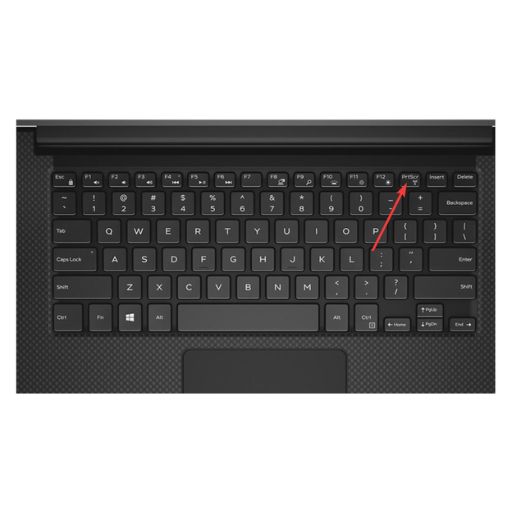
Taking screenshots has become an essential daily task, whether you are saving important information, sharing an error message, or creating step-by-step guides. If you own a Dell laptop or desktop, you may wonder about the easiest and fastest ways to capture your screen. Understanding how to screenshot on a dell device can save time and help you work more efficiently, especially for students, office professionals, and remote workers. Dell systems run on Windows, which offers several built-in screenshot options using keyboard shortcuts and tools. In this guide, we will walk you through all practical methods in a clear and structured way so you can choose the one that suits your needs best.
Using the Print Screen Key on a Dell Keyboard
Full Screen Screenshot Method
One of the most common ways to take screenshots is by using the Print Screen key, often labeled as “PrtSc” or “PrtScn” on Dell keyboards. Pressing this key captures the entire screen and copies it to the clipboard. You can then paste it into applications like Paint, Word, or email using Ctrl + V.
This method is simple and works on almost all Dell laptops and desktops. If you are learning how to screenshot on a dell system for basic tasks, this is usually the first method to try. It is especially useful when you want a quick copy of everything visible on your screen.
Active Window Screenshot
If you only want to capture the active window instead of the full display, press Alt + Print Screen. This captures only the currently selected window and copies it to the clipboard. This method helps keep screenshots clean and focused, especially when multiple windows are open.
Using Windows + Print Screen Shortcut
Automatic Saving Feature
Another efficient method involves pressing Windows + Print Screen together. This shortcut automatically captures the full screen and saves the image to your Pictures folder under “Screenshots.” Your screen may briefly dim, confirming the capture.
For users who take frequent screenshots, this is one of the most convenient options because it removes the extra step of pasting the image manually. When learning how to screenshot on a dell computer for work or study, this shortcut can significantly improve workflow.
Where to Find Saved Screenshots
After using this shortcut, open File Explorer, go to Pictures, and then open the Screenshots folder. The files are named sequentially, making them easy to organize and access later.
Using the Snipping Tool on Dell Systems
Overview of the Snipping Tool
Windows includes a built-in Snipping Tool that allows you to capture custom portions of the screen. You can choose between rectangular snips, free-form snips, window snips, or full-screen snips. This tool is ideal for precise screenshots.
Understanding how to screenshot on a dell using the Snipping Tool is helpful when you only need a specific section of your screen rather than everything. The tool also allows basic editing, such as highlighting or cropping.
How to Use It Step by Step
Search for “Snipping Tool” in the Windows search bar and open the app. Click “New,” select your desired snip type, and capture the screen area. You can then save or share the screenshot directly from the tool.
Using Snip & Sketch for Advanced Control
Modern Screenshot Experience
Snip & Sketch is a newer screenshot utility available on modern Windows versions. You can open it by pressing Windows + Shift + S. This brings up a small menu at the top of your screen, allowing you to select the screenshot type.
For users exploring how to screenshot on a dell with more flexibility, this tool is highly recommended. It is fast, intuitive, and ideal for professional use.
Editing and Sharing Screenshots
Once captured, the image appears as a notification. Clicking it opens the editor, where you can annotate, crop, or save the screenshot. This is especially useful for presentations, tutorials, or technical support tasks.
Screenshot Options for Dell Laptop Users
Using the Function Key
On some Dell laptops, the Print Screen function is combined with another key. In such cases, you may need to press Fn + Print Screen to capture the screen. This depends on your specific Dell model.
Laptop users often search for how to screenshot on a dell because keyboard layouts vary. Checking your keyboard symbols can quickly clarify which keys to use.
Touchscreen and Tablet Mode
If your Dell device has a touchscreen, you can also take screenshots using Windows touch gestures or on-screen tools. These options are helpful when using tablet mode or working without a keyboard.
Common Issues and Troubleshooting
Screenshot Not Working
If screenshots are not capturing properly, ensure your keyboard keys are functioning and no third-party software is blocking shortcuts. Updating Windows can also resolve issues.
File Not Saving
When using Windows + Print Screen, confirm that the Screenshots folder exists in the Pictures directory. If it does not, Windows may fail to save the image automatically.
Conclusion
Learning how to screenshot on a dell device is simple once you understand the available methods. From basic keyboard shortcuts to advanced tools like Snip & Sketch, Dell users have multiple options to capture their screens efficiently. Choosing the right method depends on whether you need speed, precision, or editing features. By using these built-in Windows tools effectively, you can save time, improve productivity, and handle digital tasks with greater confidence.
Frequently Asked Questions (FAQs)
1. Where is the Print Screen key on a Dell laptop?
On most Dell laptops, the Print Screen key is labeled as PrtSc or PrtScn and is usually located in the top row of the keyboard. Some models require pressing the Fn key along with Print Screen.
2. How do I take a screenshot of only one window on a Dell?
You can press Alt + Print Screen to capture only the active window. The screenshot will be copied to the clipboard and can be pasted into an image editor or document.
3. Where are screenshots saved on a Dell computer?
If you use Windows + Print Screen, the screenshot is automatically saved in the Pictures > Screenshots folder. Other methods copy the image to the clipboard unless you save it manually.
4. Can I take screenshots on a Dell without using the keyboard?
Yes, you can use tools like Snipping Tool or Snip & Sketch, which allow you to take screenshots using on-screen options without relying on keyboard shortcuts.
5. Why is my screenshot not working on a Dell laptop?
This may happen due to incorrect key combinations, disabled function keys, or software conflicts. Updating Windows and checking keyboard settings usually resolves the issue.
6. Which is the best screenshot method on a Dell for editing?
Using Snip & Sketch is the best option if you want to edit or annotate screenshots immediately. It provides built-in tools for cropping, highlighting, and saving images easily.


 popcorn shed
 mia parkers