Accounting Experts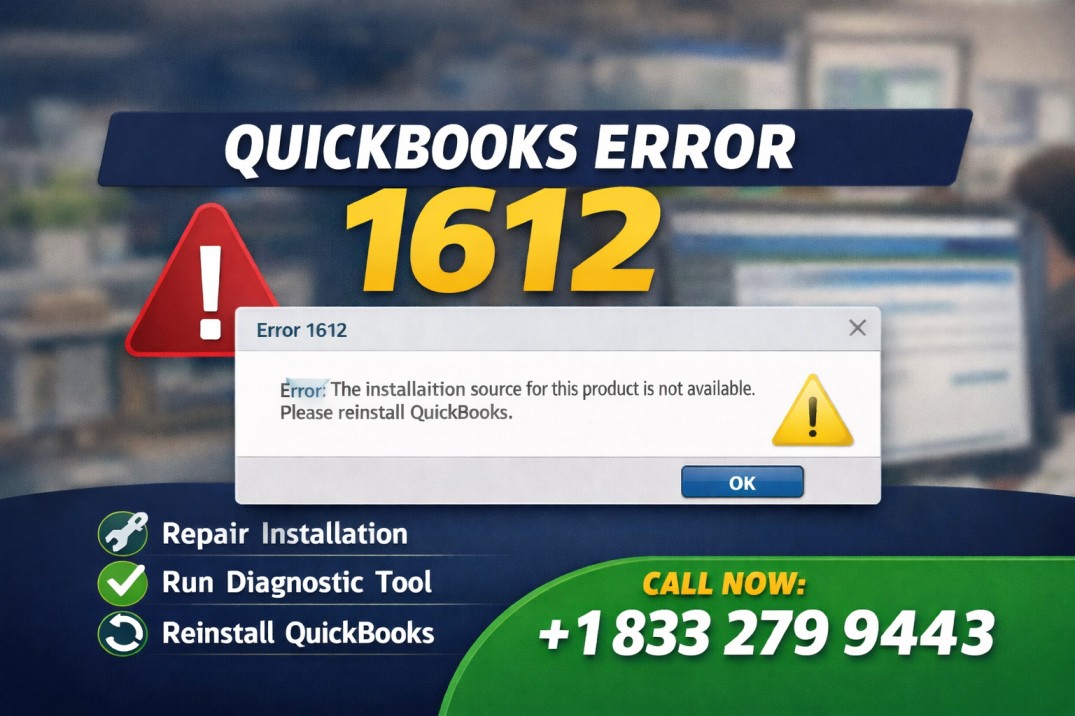
QuickBooks is one of the most trusted accounting solutions used by small and medium-sized businesses worldwide. It helps manage financial records, payroll, invoices, and reports efficiently. However, like any software, QuickBooks users sometimes face technical issues that can interrupt their workflow. One of the most frustrating problems is QuickBooks Error 1612.
This error typically occurs when installing, updating, or repairing QuickBooks. When it appears, the installation process stops, preventing users from accessing the software. For businesses that rely on QuickBooks daily, this can create delays and disrupt accounting operations.
The good news is that QuickBooks Error 1612 can often be resolved quickly with the right troubleshooting steps. In this guide, you’ll learn the causes of the error and the fastest ways to fix it in minutes.
What is QuickBooks Error 1612?
QuickBooks Error 1612 is an installation-related error that occurs when the Windows installer cannot locate the necessary installation files required to install or update QuickBooks.
The error message usually appears as:
“Error 1612: The installation source for this product is not available.”
This indicates that the system cannot find the required installation package or the original setup files needed for QuickBooks installation or repair.
Common Causes of QuickBooks Error 1612
Understanding the root cause of the problem makes it easier to fix it quickly. The most common reasons include:
1. Missing or Corrupted Installation Files
If the QuickBooks installation files are deleted or corrupted, the Windows installer may fail to complete the installation.
2. Windows Installer Issues
Sometimes the Windows Installer service may not function correctly, which prevents QuickBooks from installing or updating.
3. Incomplete QuickBooks Installation
If the installation process was interrupted earlier, QuickBooks components may be partially installed, triggering Error 1612.
4. System File Corruption
Damaged Windows system files can interfere with QuickBooks installation processes.
5. Outdated Windows Updates
Older or missing Windows updates may cause compatibility issues with QuickBooks.
Signs and Symptoms of QuickBooks Error 1612
You may encounter this error under the following circumstances:
QuickBooks fails to install or update
Installation stops abruptly
Error 1612 message appears on screen
QuickBooks setup cannot locate installation files
Windows Installer fails to complete installation
If you notice these symptoms, applying the correct troubleshooting methods can help fix the issue quickly.
The Fastest Ways to Fix QuickBooks Error 1612
Below are the most effective solutions that can resolve QuickBooks Error 1612 in minutes.
Method 1: Restart Your Computer
Before attempting advanced troubleshooting, try restarting your computer.
Steps:
- Save all open work.
- Restart your system.
- Run the QuickBooks installation again.
A system reboot can clear temporary files and fix minor system glitches that may trigger installation errors.
Method 2: Reinstall QuickBooks Using the Original Installation Source
If the installation source files are missing, reinstalling QuickBooks using the original setup file can resolve the problem.
Steps:
- Download the latest QuickBooks installation filefrom the official source.
- Locate the setup file on your system.
- Run the installer as an administrator.
- Follow the installation instructions.
Using a fresh installation file ensures that all required components are available.
Method 3: Use QuickBooks Tool Hub
The QuickBooks Tool Hub is a powerful troubleshooting utility provided by Intuit that can automatically fix installation errors.
Steps:
Download QuickBooks Tool Hub.
Install and open the tool.
Click Installation Issues.
Select QuickBooks Install Diagnostic Tool.
Allow the tool to scan and repair installation issues.
This tool can fix damaged installation files and resolve Windows installer problems.
Method 4: Repair Windows Installer
Since QuickBooks installation relies on the Windows Installer service, repairing it may fix the error.
Steps:
- Press Windows + R.
- Type mscand press Enter.
- Find Windows Installer.
- Right-click and select Restart.
Restarting the installer service refreshes the installation process and may remove the error.
Method 5: Update Windows
Running outdated Windows versions can cause compatibility issues with QuickBooks installation files.
Steps:
Open Settings.
- Click Update & Security.
- Select Windows Update.
- Click Check for Updates.
- Install all available updates.
Updating Windows ensures your system has the latest patches and compatibility improvements.
Method 6: Clean Install QuickBooks
If the error continues to appear, performing a clean installation of QuickBooks can completely remove corrupted components.
Steps:
- Uninstall QuickBooks from Control Panel.
- Download the QuickBooks Clean Install Tool.
- Run the tool to remove leftover files.
- Reinstall QuickBooks using the latest setup file.
A clean installation removes damaged files that may be causing the error.
Tips to Prevent QuickBooks Error 1612
Preventing installation errors is easier than fixing them. Follow these tips to avoid encountering QuickBooks Error 1612 in the future.
Keep QuickBooks Updated
Always install the latest QuickBooks updates to ensure compatibility with Windows and other system components.
Maintain System Health
Run regular system scans and remove temporary or corrupted files.
Avoid Interrupted Installations
Never stop the QuickBooks installation process once it has started.
Backup Your System
Keeping regular backups ensures that your data remains safe even if errors occur.
When Should You Contact QuickBooks Support?
If you have tried all troubleshooting methods and the error still appears, you may need professional help. Complex installation issues sometimes require advanced troubleshooting or system-level repairs.
QuickBooks support experts can assist with:
Advanced installation errors
System compatibility problems
Windows configuration issues
Getting professional assistance ensures the problem is resolved quickly without risking your financial data.
Final Thoughts
QuickBooks Error 1612 can be frustrating, especially when it prevents you from installing or updating your accounting software. Fortunately, this issue is usually caused by missing installation files, Windows installer problems, or system configuration issues.
By following the troubleshooting methods outlined in this guide—such as restarting your system, repairing the Windows installer, updating Windows, or performing a clean installation—you can solve QuickBooks Error 1612 in minutes and get your software running smoothly again.
Keeping your system updated and maintaining proper installation files will also help prevent this error from appearing in the future. With the right approach, you can quickly restore your QuickBooks functionality and continue managing your business finances without interruption.


 hokatrainers hoka
 sunita lawankar