Data Recovee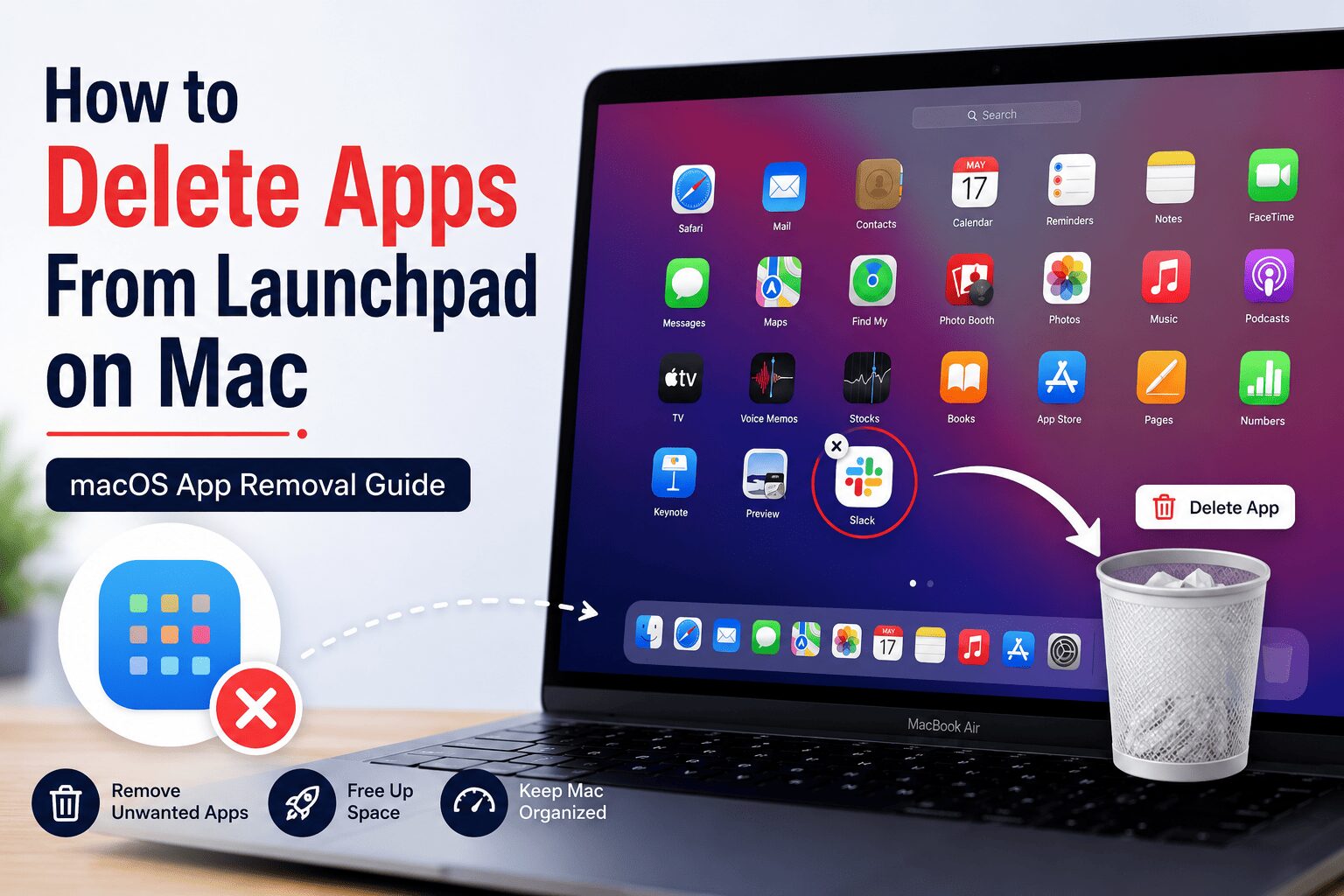
If you’re a Mac user, you probably already noticed how fast your computer can get kind of crowded, with stuff you don’t even remember adding. Over time, we tend to grab dozens of apps, then use them once or twice. Those so-called “extra” apps not only eat up storage, but they can also mess with performance and make your system feel slower, in a gradual way.
In this blog, we are going to learn how to delete apps from Launchpad on Mac, and if you wish to learn the steps, you must go through the blog entirely.
How to Delete Apps from Launchpad on Mac
Launchpad is that colorful screen where all your app icons hang out. Deleting from there is kinda like what you would do on an iPhone or iPad.
- Open Launchpad: Tap the silver rocket icon in your Dock. Or, if you prefer gestures, pinch with three fingers, and your thumb at the same time on your trackpad.
- Find the App: Scroll across the pages until you spot the app you want to remove.
- Jiggle Mode: Press and hold the app icon. Give it a second, then all the icons should start jiggling, like they’re teasing you.
- Final Step: Look for the small “X” that appears in the corner. Tap it, then hit Delete to confirm.
Why You Should Regularly Delete Unused Apps
Deleting apps from Launchpad on Mac isn’t only about making your screen look nicer. There are a few real perks when you keep your app collection trimmed.
- Extra Storage: Some apps gobble up multiple gigabytes of space. Removing them gives you more room for photos, videos, and everything else.
- Better Speed: A lot of apps keep tiny background tasks running. Those tasks can quietly drain your RAM and also hurt battery life.
- Safety: Old, not fully updated apps can hide security holes that a hacker might use to sneak into your system, kinda quietly.
Cleaning Up the “Leftovers”
When you do a macOS delete apps thing by yourself, your Mac may still hang onto a few “service files”.
- Open Finder.
- Hold the Option key, then press Go in the top menu bar, and pick Library.
- Check areas like “Application Support” or “Caches” for folders that match the app name you removed.
- Take the folders to the Trash and empty it.
What if an App Won’t Delete?
Sometimes, you try to remove an app, and you see a message about it being “still in use.” In that case
- Press Command + Option along with ‘Escape’ to open the ‘Force Quit’ menu.
- Choose the app, then tap Force Quit.
- Now start the deletion again, as you mean it.
Summary Checklist for a Fast Mac
- Check Launchpad about once a month for apps you no longer need.
- Always empty the Trash after deleting a program; don’t leave it there.
- Use a cleanup tool if you want to locate hidden files on autopilot, more or less.
If you follow this macOS App Removal Guide, you can keep your computer feeling fresh. You can have a look at the site Datarecovee to find additional details about the same.


 Ryan Wilson
 Thatware LLP