kavy jem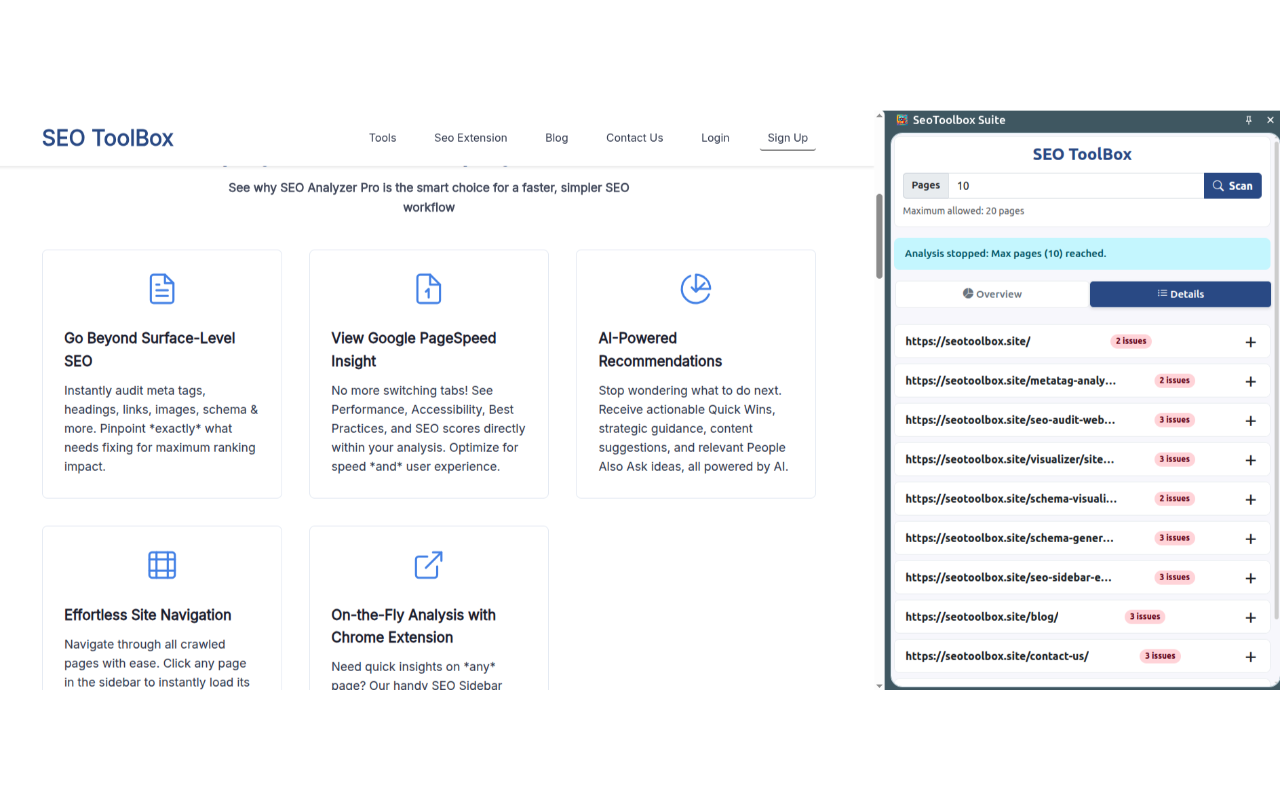
There’s a particular kind of frustration that shows up in SEO work when you’re mid-audit on a site and you realise your workflow is making the job harder than it needs to be. You’re checking one page, writing down notes, clicking to the next, and somewhere around page eight you’ve lost track of what heading structure you saw on the homepage. It’s not a catastrophic problem, but it adds up, and it quietly slows down work that should be straightforward.
Browser extensions have become a practical answer to this kind of friction, not because they replace proper SEO tools, but because they sit exactly where you’re already working. This article is going to walk through how on-page SEO extensions actually work, what they’re genuinely good for, and look specifically at SEO Toolbox Suite, a Chrome extension built by the team at seotoolbox.site that takes a slightly different approach to how on-page data gets collected and displayed. you can read more about SEO Toolbx Suite Extension here.
A Quick Grounding on On-Page SEO and Browser Extensions
On-page SEO refers to everything you can control directly on a webpage to help search engines understand and rank it. That includes your title tags, meta descriptions, heading hierarchy, image alt attributes, canonical tags, internal linking patterns, structured data, and Open Graph tags. These aren’t the only ranking factors in the world, but they are entirely within your control and they have a measurable effect on how your pages appear in search results and how well search engines can interpret your content.
Browser extensions that check these elements work by reading the DOM (document object model) of the page currently loaded in your browser. When a page loads, the browser has already parsed all the HTML, JavaScript output, and metadata. An extension can tap into that parsed data and surface it in a readable format without making any external requests. It sees what the browser sees.
This is actually a meaningful technical advantage in certain situations. Websites that use JavaScript-heavy rendering can sometimes look quite different to an external crawler compared to what a real browser session loads. When you use a browser-based extension, you’re getting the rendered version of the page, exactly as a user and a modern Googlebot would experience it. Tools that crawl externally from a server don’t always catch JavaScript-rendered content, particularly on sites with aggressive bot protection or complex frontend frameworks.
The tradeoff is scope. An extension works on the page in front of you. It doesn’t have the infrastructure to crawl thousands of URLs, build sitemaps, analyse backlink profiles, or run technical audits at scale. For that work, you need a dedicated platform. Extensions are best understood as a complement to those tools, useful for quick checks, visual walkthroughs, and the kind of iterative review that happens during content work or development.
What SEO Toolbox Suite Actually Does
SEO Toolbox Suite is a Chrome extension that analyses on-page SEO data for the pages of a website. It was built by the team behind seotoolbox.site, which also runs a web-based SEO platform with tools including an SEO Analyzer Pro and a range of free utilities. The extension and the platform are separate products serving different purposes. The extension is a browser tool for on-page analysis during active browsing. The platform handles deeper analysis through a dedicated web interface. Worth keeping that distinction clear.
What makes SEO Toolbox Suite different from most on-page extensions is how it handles multi-page coverage. The majority of SEO browser extensions are single-page tools. You load a URL, click the extension, and you get data for that one page. If you want to check the next page, you navigate there and repeat. SEO Toolbox Suite approaches this differently.
When you run a scan, the extension automatically discovers internal links on the current page and uses them to collect SEO data from additional pages within the same domain. You can configure how many pages to include per scan, with a default of 10 and a ceiling of 20. The extension then works through those pages and compiles the results into a single view, so you’re looking at on-page data across a slice of the site rather than a single URL.
All of this processing happens locally in your browser. No data is sent to any external server. The extension reads, processes, and displays everything within your browser session, which matters both for privacy and for the bot-detection reason mentioned earlier.
The Persistent Sidebar and Why It Matters
Most browser extensions display their information in a popup. You click the icon, a box appears over the page, you look at the data, and when you click away or navigate somewhere else, the popup closes and the data is gone. For a quick spot check, that’s fine. For any kind of comparative work across pages, it gets in the way.
SEO Toolbox Suite uses a persistent sidebar instead. The sidebar opens alongside the page content and stays open as you browse. If you navigate to a different URL on the same domain, your analysis results remain visible. You’re not losing context every time you move between pages, and you can refer back to the data you’ve collected without re-running anything.
This matters more than it might sound. During a content audit, for example, you might want to check how a site handles H1 tags across its category pages, then look at a few product pages and compare. With a popup-based tool, you’re toggling back and forth between states. With a persistent sidebar, the data stays in your peripheral vision and you can work through the site without the tool interrupting your flow.
What Gets Checked in the Scan
The extension covers the core on-page elements that show up in any serious SEO audit. Here’s how each one actually surfaces in practical use.
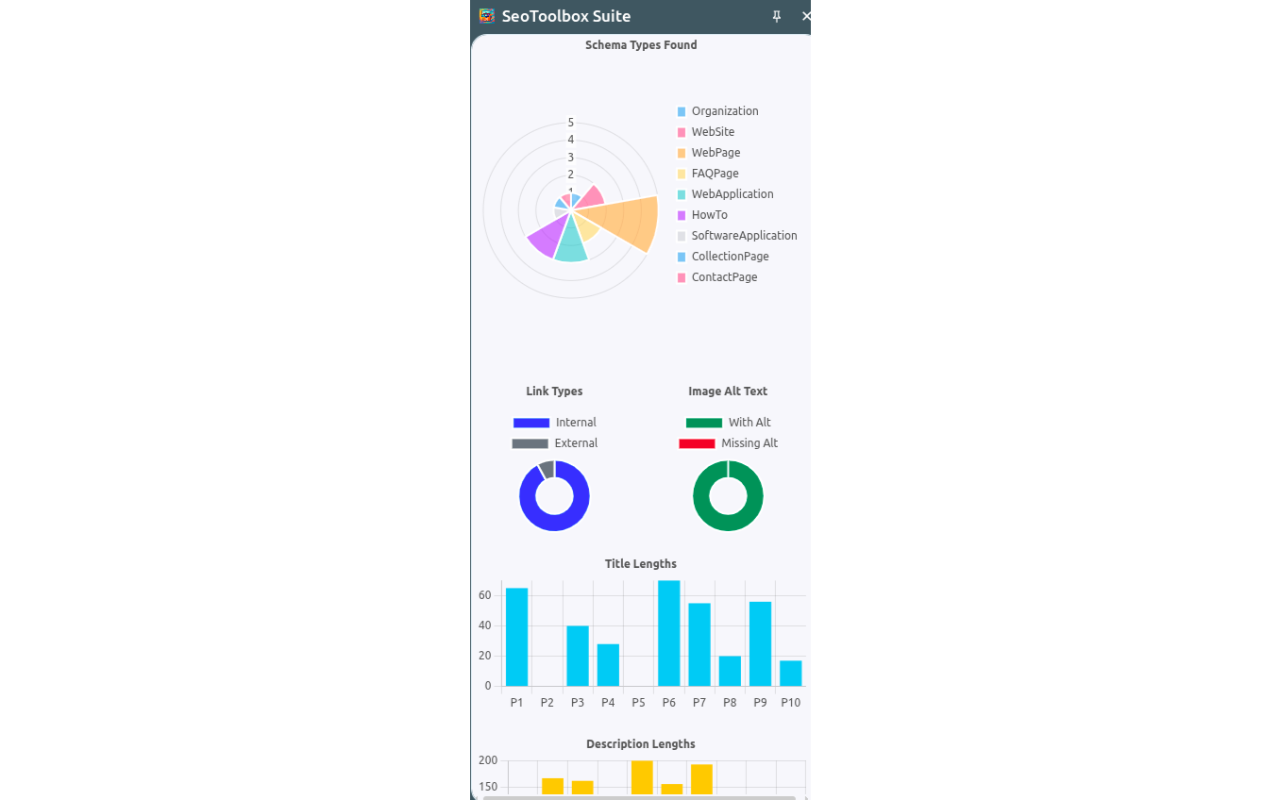
Title tags and meta descriptions are checked across all scanned pages. You can see at a glance which pages have titles outside the recommended length range, which are missing meta descriptions entirely, and whether any pages are using duplicate title content. These are basic checks but they’re time-consuming to do manually across even a modest site, and they’re genuinely impactful.
Canonical tags are included in the metadata review. The canonical tag tells search engines which version of a URL is the authoritative one, particularly useful on sites with multiple URL variations for filtered or sorted pages. Checking whether canonicals are present and correctly pointing to the right URLs is something that often gets skipped in lighter audits, so having it visible per page is useful.
Heading structure from H1 through H6 is laid out so you can review hierarchy and spot issues. Multiple H1s on a single page, skipped heading levels, or headings that don’t logically structure the content are patterns that show up surprisingly often, particularly on pages built through CMS templates where heading tags sometimes get applied for visual styling rather than semantic structure.
Image analysis covers alt text presence and gaps. Every image on each scanned page is listed, along with whether it has an alt attribute and what that attribute says. Missing alt text is both an SEO issue (images without alt attributes can’t contribute to keyword relevance) and an accessibility concern.
Link analysis breaks down internal and external links, flags broken links, and shows anchor text. The anchor text view is particularly useful because over-optimised anchor text in internal links is something that’s easy to overlook but does affect how equity flows through a site. Seeing all your anchor text in one place makes patterns obvious.
Schema markup is extracted and displayed so you can verify what structured data is present on each page. Whether a product page has valid Product schema, whether a blog post has Article markup, whether FAQ schema is correctly formatted: these directly affect whether your pages qualify for rich results in Google Search.
Open Graph and Twitter Card tags are checked for social sharing optimisation. When someone shares a URL on social media, these tags determine what title, description, and image gets pulled into the preview. Missing or misconfigured OG tags are a common issue that tends to get ignored until someone notices a share looks wrong.
The Bot Protection Angle
This deserves its own mention because it comes up in real workflows. Some websites have bot detection in place that blocks crawling tools, even reputable ones. This can happen on competitor sites, on clients’ staging environments with Cloudflare rules, or on sites using enterprise-level security configurations.
Since SEO Toolbox Suite runs entirely within your browser, it operates as a real browser session. The site sees a normal user visiting pages in the normal way. The extension reads the data that’s already loaded in your browser rather than making external crawl requests, which means bot protection typically doesn’t interfere with it. If you’ve tried to run an audit on a site through an external tool and gotten blocked or incomplete results, a browser-based approach is a practical workaround for on-page data.
How This Fits Into a Broader SEO Workflow
An extension like this is most useful at specific points in the work, not as a wholesale replacement for other tools. Here are a few scenarios where it earns its place.
During a content audit, when you want to walk through a section of a site and check heading structure, title tags, and canonical setup without exporting reports from a larger tool. The scan gives you a quick cross-section and the sidebar keeps the data accessible while you browse.
During development or pre-launch review, when a site isn’t yet public and crawling tools can’t access it, but you can browse it locally or on a staging URL. The extension works on any URL your browser can load, including localhost and password-protected staging environments.
During a competitor review, when you want to understand how a competitor has structured their on-page SEO across a sample of their pages. The multi-page scan gives you a faster read across their site without manual checking page by page.
For anyone doing regular content publishing, checking each new page as it goes live is much faster through the sidebar than running a full crawl every time.
Frequently Asked Questions
Does SEO Toolbox Suite send my data to any server? No. The extension processes everything locally within your browser. It reads the data from pages as they load in your session and displays it through the sidebar. Nothing is transmitted to an external server, which also means it works without an account or login.
What’s the maximum number of pages I can scan at once? The default is 10 pages per scan, with a maximum of 20. The extension discovers pages by following internal links from the starting URL, so the pages it scans are real internal pages within the same domain rather than a manually entered list.
Can it analyse pages on sites with bot protection or Cloudflare? In most cases, yes. Because the extension runs within your browser as a regular browsing session, it typically isn’t affected by the bot detection that blocks external crawling tools. You’re not making crawl requests from a server. You’re reading data that your browser has already loaded.
Does it work on JavaScript-rendered pages? Yes. Since the extension reads the DOM from your browser after the page has fully rendered, it sees the same content that a user sees, including content generated by JavaScript. External crawlers sometimes miss JavaScript-rendered elements, but the extension doesn’t have that limitation.
Is SEO Toolbox Suite free to install? Yes, The extension is available on the Chrome Web Store and it’s free to install.


 paul walkers
 David Miller